Your website is the highest-traffic, most publicly visible surface your brand has. Any outdated or off-brand content that appears on your website does the most damage to your brand’s image.
While enterprise companies heavily invest in digital asset management tools to improve brand governance and consistency, the website often sits outside it. Enterprise DAMs offer approval workflows, version control, usage rights, permissions by market and team — none of which carries over to the CMS that manages your website.
A DAM-CMS integration helps keep the two tools connected — so that the governance built into the DAM travels with the asset into the tool that puts content live on your site.
What is a DAM-CMS integration?
DAM and CMS are two core tools in modern companies’ tech stacks. The DAM is the source of truth for brand and creative assets, handling storage, metadata, version history, permissions, and approval statuses. The CMS is responsible for the structure and content of the website itself — pages, layouts, copy, and navigation. They solve different problems, so many teams run them side by side.
A DAM-CMS integration connects the digital asset management system to the content management system that publishes your website. It lets editors search, select, and place approved DAM assets directly inside the CMS, without downloading files to their desktop or re-uploading them into a separate media library.
The hidden cost of not integrating your DAM and CMS
When a DAM and CMS aren't connected, three costs in particular tend to recur, regardless of team size or industry.
Double the upload work
Every asset that makes it onto your website touches both systems. Take a product marketing team prepping for a seasonal campaign. The creative team finishes the campaign visuals, uploads them to the DAM, tags them by product line and region, and routes them through approval.
Then the web team needs those same assets. For every page, someone opens the DAM, tracks down the right asset (matching product, region, language, and crop ratio), downloads it, and uploads it again into the CMS media library.
This manual work grows alongside content production. A team running weekly blog posts, monthly campaigns, and a constant stream of social-to-web content repeats this cycle dozens of times a day.
As well as wasting time, every manual handoff between tools introduces an element of risk. Users may find the wrong crop, the wrong language version, or an asset still awaiting sign-off for publication. Handling assets manually between tools increases the chances of getting it wrong, and the teams publishing the most content are the ones running these risks the most often.
The CMS becomes a disconnected silo
When you update an asset in the DAM — for example, a new product shot, corrected logo, or campaign image swapped out for legal reasons — the change ripples through every asset library, brand guideline page, and downstream tool that pulls from the DAM.
But nothing happens to the version already published on your website. The CMS holds its own copy, with no connection back to the file you just changed in your DAM. The DAM reflects changes instantly, while the CMS has a static, disconnected file, so the old version stays live until someone notices.
The only way to catch this is to go looking for it. Someone has to remember which pages use which assets, open each one, and compare it against the current DAM library by eye. For an enterprise site with thousands of pages across regional domains, campaign microsites, and legacy content, it's not realistic, so old product photography can sit on live pages for weeks or months.
Governance breaks at the CMS boundary
Your DAM was meant to provide a single source of truth for your digital assets, but that doesn’t work for assets that have been downloaded from the DAM and uploaded separately elsewhere.
Permissions, approval status, usage rights, and version history are all enforced inside the DAM. None of that travels with a file once it's copied into the CMS. The CMS has no record of whether it was ever approved, if its usage rights have expired, or whether a newer version exists.
That means the web team can end up publishing content that the DAM would have blocked, such as an asset still in review, or an image whose license expired last quarter. And because the CMS is what puts content on the live site, this governance gap becomes a visible problem, putting your brand at risk if unapproved or unlicensed content goes live.
How a DAM-CMS integration should actually work
A real DAM-CMS integration has to get three things right: how editors find and place assets, how those assets are delivered to the page, and how access to them is governed. Each section below covers these requirements in more detail.
Browse and select DAM assets inside the CMS
If your DAM and CMS are properly integrated, you should be able to browse and choose assets that live in your DAM, without switching out of your CMS editor.
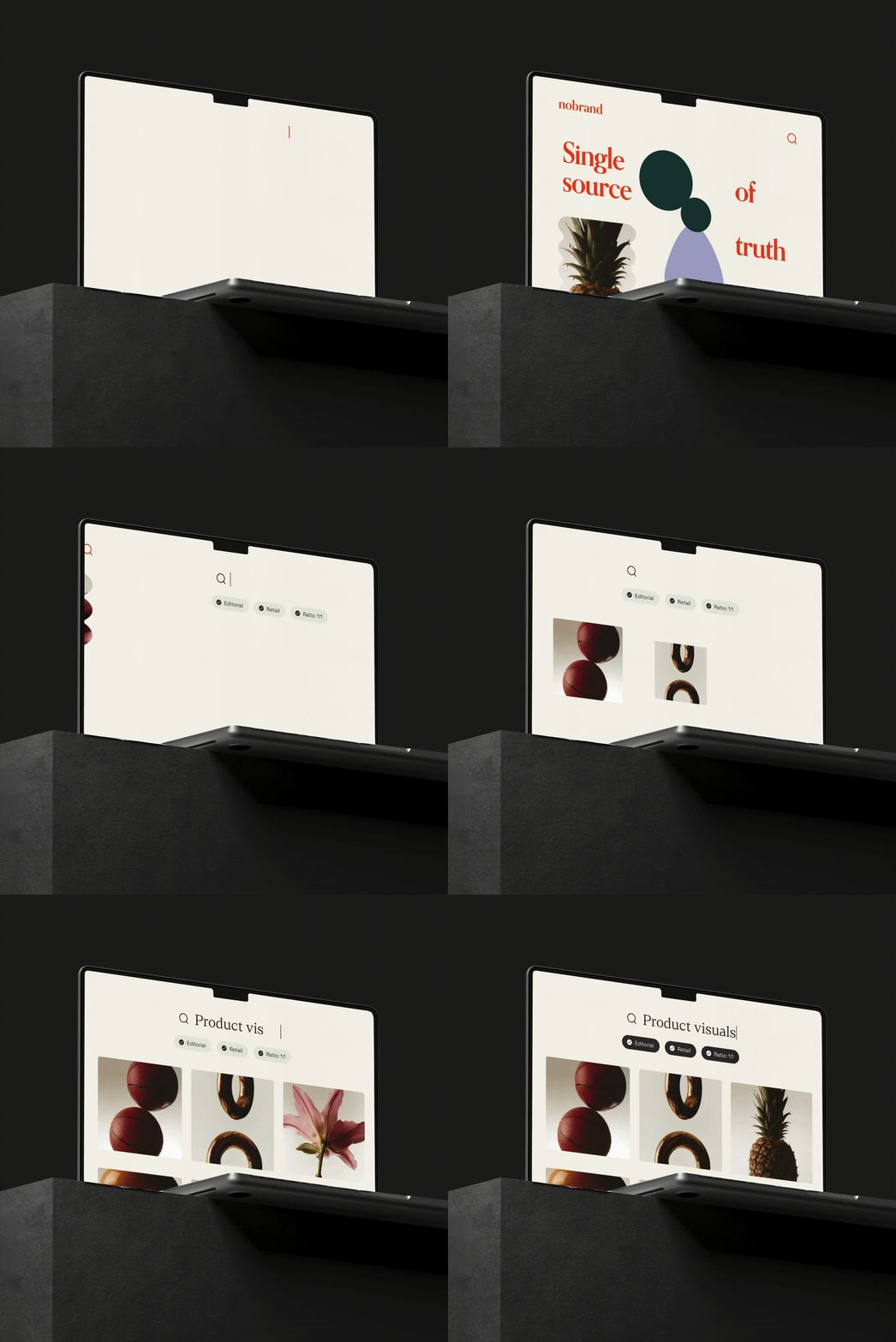
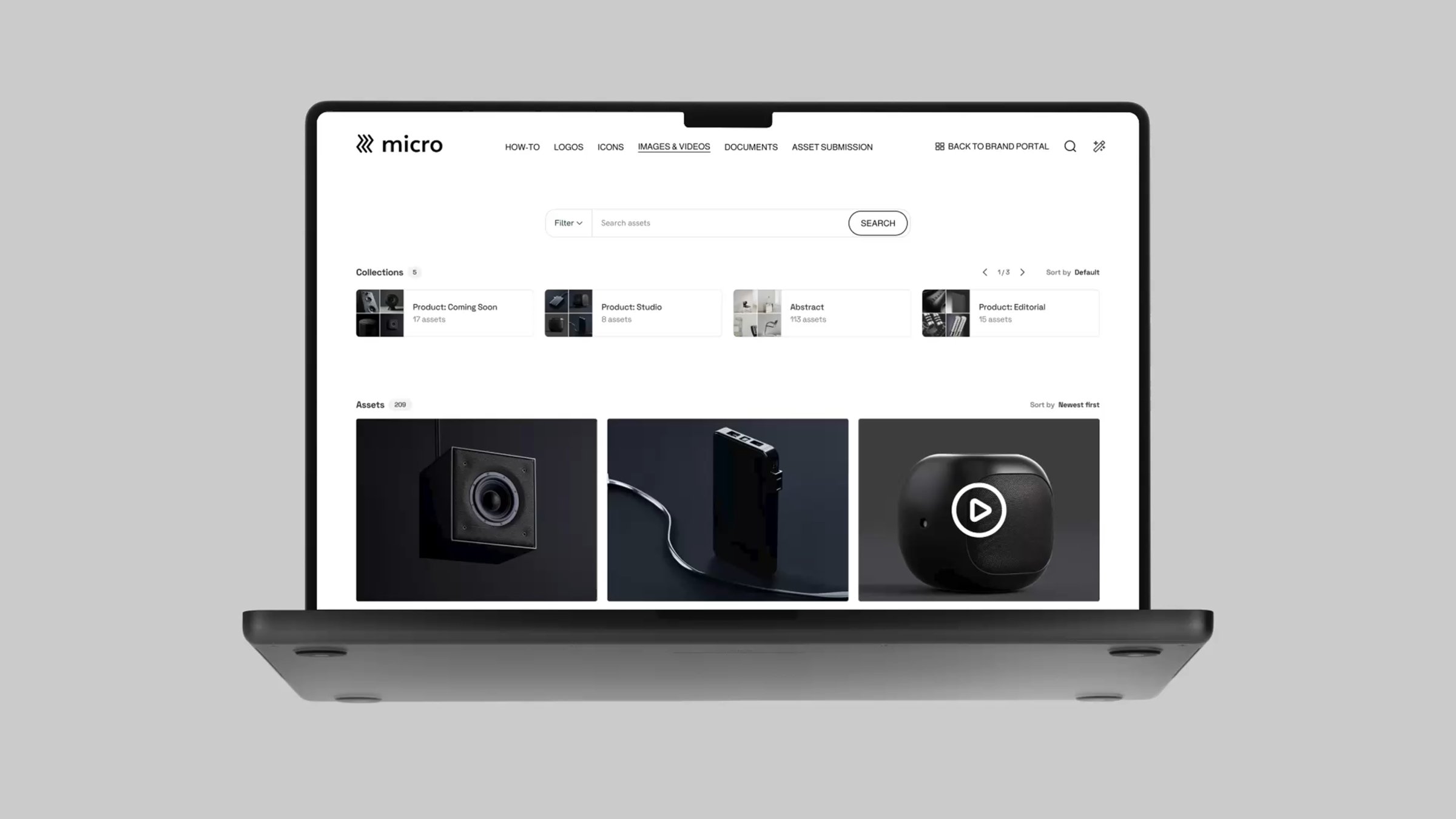
For example, your web editor is uploading a blog post in their CMS. They need a product hero image from last month's launch. With a DAM-CMS integration, a panel inside the CMS editor lets them search the DAM library directly, filter by product line, asset type, or approval status, and find the exact image they need. They place it on the page, and they're done.
Without an integration, the process looks very different: they have to open a new tab, log into the DAM, search, download the file, switch back to the CMS, and upload it into the media library — then repeat for every image on the page.
An integration that brings the DAM's search, metadata, and governance into the CMS is one people actually use, but if it still requires them to switch into a separate system, they’ll most likely work around it.
CDN-based delivery, with the DAM as the source of truth
How an asset gets from the DAM to the published page on your website is an important technical detail to understand.
If your DAM-CMS integration delivers assets via a CDN, the integration embeds the asset via a CDN link served directly from the DAM, rather than a user moving files manually between tools. The image on the published page is the same asset that’s in your DAM, delivered through a content delivery network. A CDN-delivered asset stays connected to its original source, so any version updates are reflected in that asset on your live site.
This level of integration provides two core benefits:
- Faster page performance: Media assets load more quickly due to optimized delivery mechanisms and multiple smart caching layers when accessing content in the DAM
- Improved governance: The CMS references the asset in your DAM rather than storing a separate copy, reducing the risk of showing outdated assets on your website.
In a shallow integration — or if your DAM and CMS don’t integrate at all — the user still needs to download the asset they need from your DAM, then upload it into the CMS as a file. It lives there as a separate file with no connection to the original.
Governed access that respects DAM permissions
A strong DAM-CMS integration carries the DAM's access rules into the CMS itself, so governance rules established in your DAM apply on your website as well as in your asset management system.
The user permissions and access controls your brand team has configured in the DAM travel with the asset into the tool that actually puts content live. The DAM-CMS integration authenticates each CMS user against the DAM, so when an editor opens the asset browser within the CMS, they can see, access, and use the files their DAM permissions entitle them to. For example, a web editor in your EMEA team only sees assets for the European market.
The integration also respects approval statuses, so assets that haven’t been finalized don’t show up for use on your website. Out-of-license images or draft assets that are still awaiting legal review can’t be published from the CMS.
Brand-building platform vs hybrid media tools
Not every organization connects a dedicated DAM to their CMS. Some adopt a hybrid media tool that handles asset storage and delivery in a single platform instead. Both are legitimate architectural choices — they just optimize for different things. The right choice depends on what your organization needs most.
The hybrid media approach
This type of tool is built for developer teams who need precise control over how images and video are processed and delivered on the web. For organizations whose primary challenge is media delivery performance and developer-led web experiences, this approach is a good fit.
These tools offer a range of functionality including:
- Automatic image resizing and reformatting. Instead of a designer exporting multiple crops of the same image for different devices and page layouts, the tool generates them from a single source file.
- Global delivery performance. Assets are served from servers close to the end user, which means a product page loads at the same speed in London as it does in Los Angeles, without the web team doing anything differently.
- Automatic format conversion. The tool detects which file format a visitor's browser supports and provides them accordingly so pages load faster and users experience fewer errors.
The brand-building platform approach
Other companies focus on a different problem: keeping a brand consistent and governed across many teams, regions, and channels — with the web as one of them. In this instance, organizations connect a brand-building platform with a full-featured DAM to their CMS, to bring brand governance and asset management into their website management.
A brand-building platform typically offers different functionality to a media tool:
- Asset approval workflows. Before an asset can be published anywhere, it goes through a review process inside the DAM. A brand manager or legal reviewer signs off, and only then does the file become available for use.
- Usage rights and expiry tracking. When a usage license lapses, the asset is flagged automatically rather than sitting quietly on a web page until someone notices.
- Brand guidelines alongside assets. Instead of housing guidelines in a separate PDF, they live in the same platform as the assets themselves. A designer picking a logo can see the usage rules for that file without switching tools.
- Editable templates to enable non-designers. Marketing managers, regional teams, and sales can create on-brand materials from pre-approved layouts without involving a designer.
- CMS integrations that carry permissions through. Regional restrictions, approval status, and license limits all carry through from the DAM to ensure asset governance extends to the website.
- Multi-brand and multi-market management. A global company managing six sub-brands, or a brand running separate campaigns for thirty markets, can keep everything in one platform with separate libraries, permissions, and guidelines for each.
Choosing between them
The right choice depends on your organization’s priorities and specific requirements. If fast, programmatic media delivery is the priority and your web team is developer-led, a hybrid tool is often the stronger fit.
But a global brand's core problem is usually governance and consistency at scale, not media transformation. If the bigger challenge is keeping a brand consistent across many teams, regions, and agencies — and making sure the website reflects that same standard — a brand-building platform connected to your CMS is a better fit for your priorities.
However, these two approaches aren’t always in competition. Some organizations use brand-building tools like Frontify for brand governance and a separate media delivery layer for specific developer needs. If you’re using two tools together, it’s important to get clear on which system owns brand governance, because assuming a hybrid media tool covers it is usually how governance gaps and mistakes open up.
What to look for in a DAM-CMS integration
Most DAM vendors list "CMS integration" on their features page. What that means in practice ranges from a full native connector to a generic API that your developers would need to build against themselves. The criteria below help separate the two, so when you’re speaking to vendors you can judge each by what the integration actually does, rather than just whether a logo appears on an integrations page.
1. Native integration with your specific CMS
Some DAMs build dedicated connectors for specific CMS platforms that install and work without any custom development. Others offer a generic API: the technical building blocks are there, but someone on your team has to write the code that connects the two systems and maintain it every time either platform updates. That transfers the cost and complexity to your engineering team.
What to ask: Does the DAM offer a native, supported integration with the CMS you actually run? Ask the vendor to demo the integration inside your specific platform, not a generic product walkthrough.
2. CDN-based delivery rather than file copying
When a web editor places an asset on a web page through the integration, one of two things happens. Either the integration copies the file into the CMS, creating duplicates with no link back to the governed source. Or, the integration delivers assets via CDN links, keeping the DAM as the single source of truth.
What to ask: When an editor places an asset through the integration, what physically happens? Is a file copied into the CMS media library, or is a CDN link embedded? If it's a CDN link, where is it served from, and who controls the original file?
3. What happens when an asset changes in your DAM
When an asset is delivered via CDN link rather than copied into the CMS, the published page is referencing the DAM's file rather than storing its own copy. In theory, that means updating the asset in the DAM should update what appears on the published page.
Whether that actually happens automatically and how quickly, depends on how the vendor has built the integration. Some integrations update the published asset immediately when the source changes. Others cache a version of the file for a period of time, meaning there's a delay before the live page reflects the update. Others may require someone to manually trigger a refresh.
What to ask: When an asset is updated in the DAM, what happens to the published page? Is the change automatic, or does someone need to take action? Are there situations where the published version wouldn't update?
4. Governance that carries into the CMS
In the DAM, access controls determine who can see and use which assets. Check whether those rules still apply when the same person is working in the CMS.
In a weak integration, the asset browser inside the CMS shows the same files to everyone, regardless of their DAM permissions. That means an editor could place an asset they're not entitled to use, such as a file still in review or an image not cleared for their region.
What to ask: When a CMS editor opens the asset browser, are they shown only the assets their DAM permissions allow? Do approval status, regional restrictions, and usage rights still apply? Ask the vendor to demonstrate what a restricted user sees rather than only showing the admin view.
5. An editor experience that people will actually use
An integration that's slow or awkward to use will get bypassed. If finding an asset inside the CMS requires more steps than just downloading it from the DAM and uploading it manually, most editors will do exactly that.
The in-editor experience determines whether the integration changes behavior or just becomes something else for people to work around. Editors should be able to search the DAM library using the same filters and metadata they'd use in the DAM itself — by campaign, asset type, region, approval status — without leaving the page they're building.
What to ask: Can editors search and filter the full DAM library from inside the CMS, using the same metadata and tags they’d use in the DAM? Ask to see this demonstrated by someone other than a sales engineer — ideally in a real content editing workflow, not a polished demo environment.
How Frontify integrates with your CMS
With Frontify, assets stay governed in the DAM, and web editors access them from inside the CMS, without having to do the duplicate work of downloading from one tool and re-uploading into the other.
It provides CDN-based delivery so editors can access assets stored in your DAM directly inside the CMS. Instead of downloading assets from the DAM and uploading into your CMS media library, this lets editors search and filter the Frontify DAM from within their CMS editor — using the same metadata, tags, and filters available in Frontify itself. Assets on the published web page are connected to the Frontify DAM as the original source, so if the file’s replaced or updated in the DAM, those changes get reflected automatically on your website.
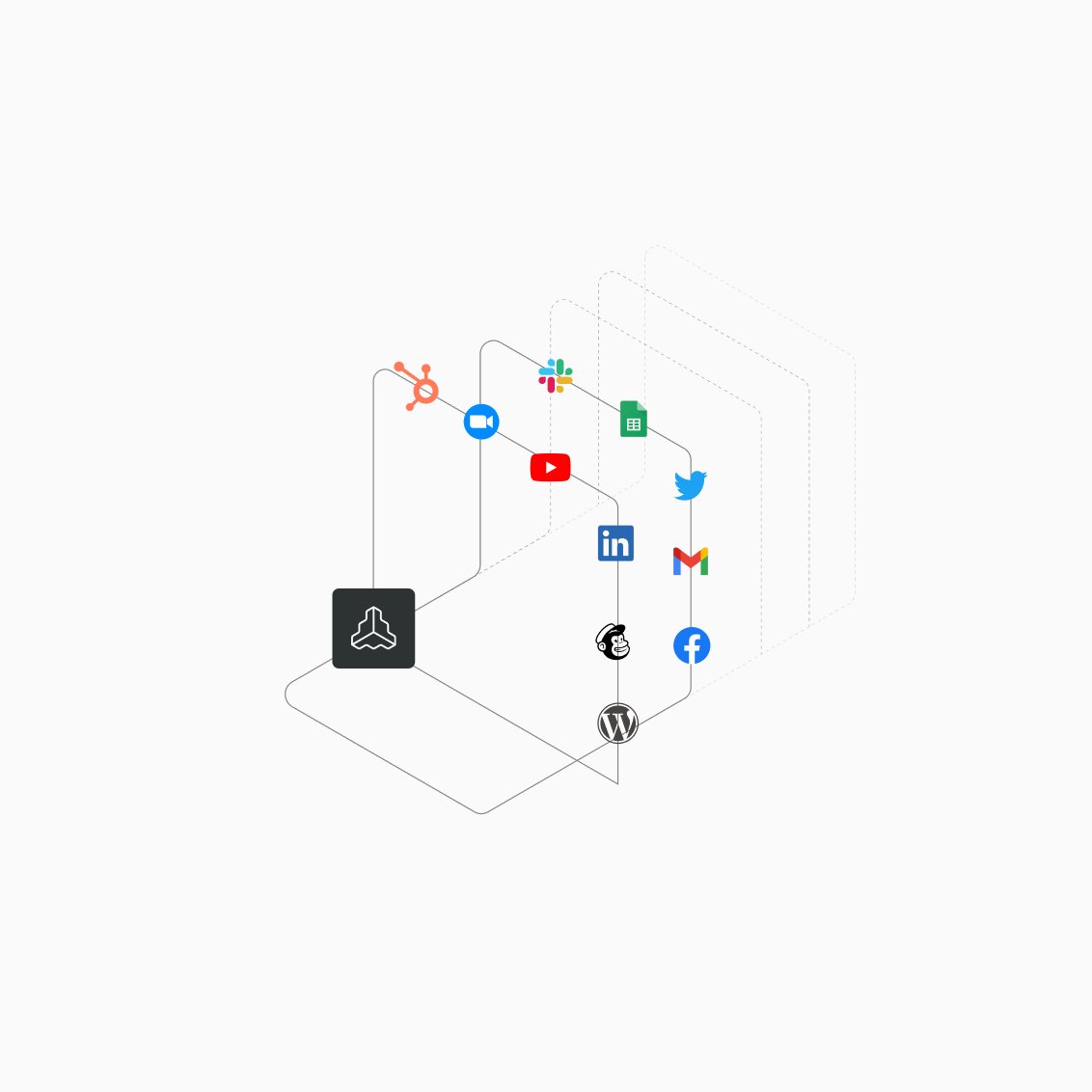
Frontify offers native integrations with many CMS platforms, including WordPress, Contentful, Webflow, Shopify, Drupal, Sitefinity, Storyblok — and more. This breadth of coverage means most enterprise teams can connect Frontify to the CMS they already run without custom development work.
If a direct integration doesn't exist for a specific CMS, customers can integrate via Frontify's API, which connects the Frontify DAM with your CMS enabling asset and metadata access, natural-language asset discovery, automated syncing, and metadata passthrough.
Check out the current list of tools Frontify integrates with, or book a demo to learn more about how it can help you keep your web assets current and consistent.